Your Branch dashboard is showing 10,000 clicks. Trackier is showing 6,000. That gap is not a sync delay. In most cases, it means clicks are being fired before a real user interaction ever takes place, which is one of the more common forms of click fraud on mobile campaigns.
Trackier’s S2S click tracking feature is built specifically for this scenario. Instead of relying on a user’s browser to record and relay click data, the information moves directly between servers. This guide walks you through what S2S Click Tracking is, when to use it for Branch-integrated campaigns, and how to configure everything correctly in Trackier.
What Are Server-Side Clicks?
In standard click tracking, a click event is recorded using browser cookies, JavaScript tags, or pixels. The data passes through the user’s device and browser before it reaches your tracking system. That dependency creates gaps: ad blockers strip signals, mobile browsers limit cookies, and fraudulent actors can inject clicks before the browser finishes loading.
S2S tracking removes the browser from the equation. Here is how the flow works:
- A user clicks a publisher’s tracking link
- The click is recorded at the server level and assigned a unique identifier
- That identifier travels through the URL chain between servers
- When a conversion occurs, the identifier is matched to attribute the event
The result is more reliable data, less attribution loss, and a tracking record that does not depend on the end user’s device or browser behavior.
What Is It Used For?
Once S2S click tracking is configured on a Branch campaign inside Trackier, it handles several things simultaneously:
- Validates clicks at the server level before they are recorded, removing browser-based fraud vectors
- Masks the advertiser’s Branch link from publishers by redirecting traffic through a URL you control
- Passes GAID and IDFA values directly for accurate device-level attribution
- Closes the click volume gap between Branch and Trackier that often points to fraudulent activity
What You Would Require Before Starting
To set this up, you need a Branch campaign that is already live or ready to go live on Trackier. You will also need:
- Access to your campaign settings inside the Trackier panel, where the S2S toggle is located
- The advertiser’s Branch tracking URL is formatted correctly with the required parameters
- The direct Play Store or App Store URL for the advertiser’s app, which will serve as your S2S redirect URL
One more thing worth noting before you begin: S2S click tracking needs to be enabled on your account by your account manager. The setting will not appear in your campaign dashboard until this is done. Contact your account manager and confirm the feature is active before proceeding.
Action 1: Enable S2S Click Tracking in Campaign Settings
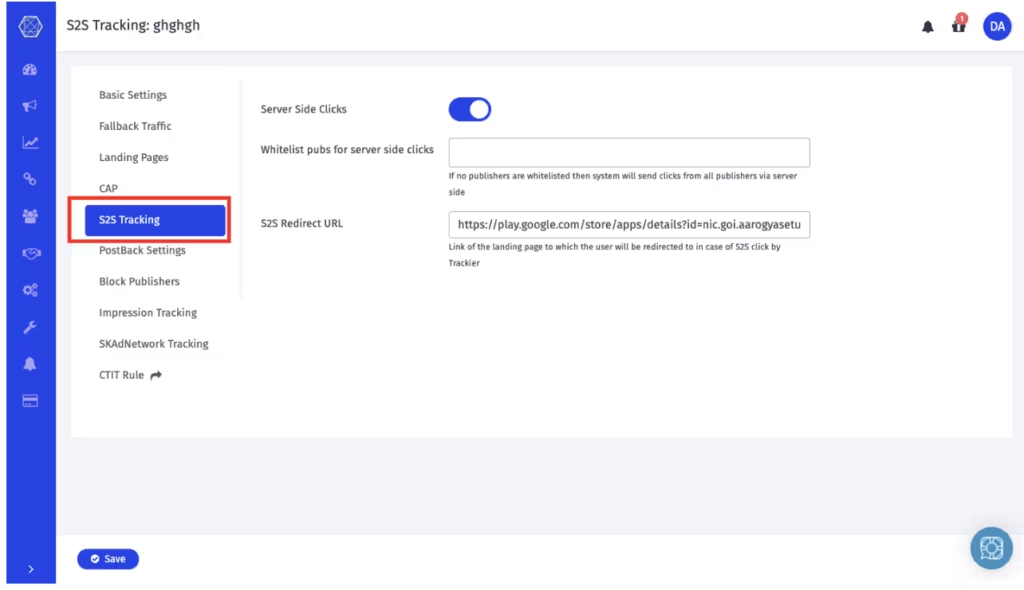
Open the campaign you want to configure inside your Trackier dashboard and navigate to campaign settings. Once the feature has been enabled on your account, you will find the server-side clicks toggle here.
After turning it on, two fields appear:
Whitelist publishers for server-side clicks: This restricts S2S click tracking to specific publishers you select. If you leave the field blank, all publishers on the campaign are covered automatically. Use the whitelist when suspicious activity is concentrated around specific traffic sources, and you want to apply controls selectively without changing the tracking flow for other publishers.
S2S redirect URL: This is the final landing page your publishers will be sent to. It replaces the advertiser’s Branch link in the redirect chain, which is what masks it from the publisher’s view. For mobile app campaigns, set this to the direct Play Store or App Store URL for the advertiser’s app. No additional parameters need to be added here.
Action 2: Set Up the Branch Tracking Link
With the Trackier side configured, the Branch tracking URL also needs to be set up correctly for S2S to function. For the GAID and IDFA method, which is the standard approach for mobile campaigns, the advertiser’s Branch campaign URL must include device ID parameters and the S2S activation flag.
The $s2s=true parameter at the end is mandatory. Without it, Branch will not process the click as a server-side event, and the entire setup will not work as intended. The GAID and IDFA values are passed directly from the publisher to the advertiser through the tracking link parameters, so no additional configuration is needed on the redirect URL side.
What Happens After the Setup Is Complete?
Once both actions are complete, the tracking chain runs in the background without any manual intervention.
- A user clicks the publisher’s tracking link
- The click is recorded server-side on Trackier with the device ID and campaign parameters
- The user is redirected to the S2S click tracking redirect URL you configured
- The advertiser’s Branch link is never exposed to the publisher
- When a conversion occurs, it is attributed back to the correct click and publisher
If the click volume mismatch between Branch and Trackier was being driven by fraudulent click injection, you should see the numbers begin to converge within a short period of the setup going live.
Need Help?
If you run into any issues while configuring S2S click tracking or setting up the Branch tracking link on Trackier, our support team is available via the in-platform chat or at support@trackier.com. We will make sure your click data is accurate, and your attribution chain is intact from the first click.
FAQs
What is S2S click tracking in Trackier, and when should I use it for Branch campaigns?
S2S click tracking is a server-to-server method of recording clicks that removes the user’s browser from the attribution flow. You should use it for Branch campaigns when you see a consistent and growing gap between click volumes on Branch and Trackier, which typically indicates fraudulent click injection. It is also the right setup when you want to mask your advertiser’s Branch link from publishers.
How do I enable S2S click tracking on a Branch campaign in Trackier?
S2S click tracking needs to be enabled on your account by your account manager first. Once activated, you will find the server-side clicks toggle in your campaign settings. After enabling it, you will be prompted to configure a publisher whitelist and an S2S redirect URL.
What does the $s2s=true parameter do in the Branch tracking link?
The $s2s=true parameter tells Branch to process the click as a server-side event rather than a browser-side event. It is mandatory for S2S tracking to function. Without it, Branch will not route the click through server-side validation regardless of how Trackier is configured.
What should I use as the S2S redirect URL in Trackier?
For mobile app campaigns, the S2S redirect URL should be the direct Play Store or App Store URL for the advertiser’s app. No additional parameters need to be added to this URL. The device ID values, GAID and IDFA, are passed directly through the Branch tracking link parameters.
