As part of the March 2024 product updates, Trackier introduced Two-Factor Authentication (2FA) to help users add an extra layer of security to their accounts. With 2FA enabled, users need more than their regular email and password to access their Trackier panel.
They must also enter a unique 6-digit verification code generated through an authentication app. This additional security layer helps protect sensitive campaign and conversion data, publisher and advertiser information, payment details, and account settings.
In this product update, we’ll explore how Trackier’s 2FA works, who can enable it, how to set it up, and how backup codes can help prevent account lockouts.
What’s New in Trackier’s March 2024 Product Updates?
Account security is essential for performance marketing teams managing campaigns, conversions, partners, and sensitive business information. Passwords alone may not always provide sufficient protection, particularly if credentials are reused, guessed, or compromised.
With Two-Factor Authentication, Trackier adds another verification step to the login process. Users must verify their identity through an authentication app before they can access their account.
This means that even if someone gains access to an account password, they still need the second verification factor to complete the login.
What Is Two-Factor Authentication?
Two-Factor Authentication, commonly known as 2FA, is an additional security layer that requires users to verify their identity using a second method after entering their password.
In Trackier, this second factor is a time-sensitive 6-digit code generated through an authentication app.
The login process follows a simple flow: Email and Password → 6-Digit Verification Code → Account Access
The verification code changes periodically, helping make unauthorized access more difficult.
Why Two-Factor Authentication Matters
Trackier accounts can contain important business and performance marketing information, including:
- Campaign and conversion data
- Publisher and advertiser details
- Payment and invoice information
- Performance reports and analytics
- Account and security settings
Adding 2FA helps provide additional protection for this information. It creates a second barrier between an unauthorized user and the account, even if the account password has been exposed.
For teams managing multiple campaigns and partner relationships, this additional layer can help strengthen overall account security without significantly changing the regular login experience.
How 2FA Works in Trackier
Once Two-Factor Authentication is enabled, logging into Trackier requires two verification steps.
- Enter Your Account Credentials: Start by entering your registered email address and password as usual.
- Enter the Verification Code: Trackier will then request a 6-digit verification code. Open your authentication app to view the current code.
- Verify Your Identity: Enter the code into Trackier. Once the code is successfully verified, you can access your account. Because the authentication code changes periodically, the same code cannot be reused indefinitely.
Who Can Enable 2FA in Trackier?
Two-Factor Authentication is available to different types of Trackier users.
- Admins: Admins can enable 2FA for their own accounts.
- Advertisers: Advertisers can enable 2FA for their accounts.
- Publishers: Publishers can enable 2FA for their accounts.
- Team members: Team members can enable 2FA individually for their own accounts.
An admin can activate 2FA for their own account but cannot enable it on behalf of individual team members. Admins can instead encourage team members to enable the feature themselves.
How to Set Up Two-Factor Authentication in Trackier
Enabling 2FA requires only a few steps from your Trackier profile.
Step 1: Open Your Profile
Log in to your Trackier panel and click your profile icon in the top-right corner. Select Profile from the menu.
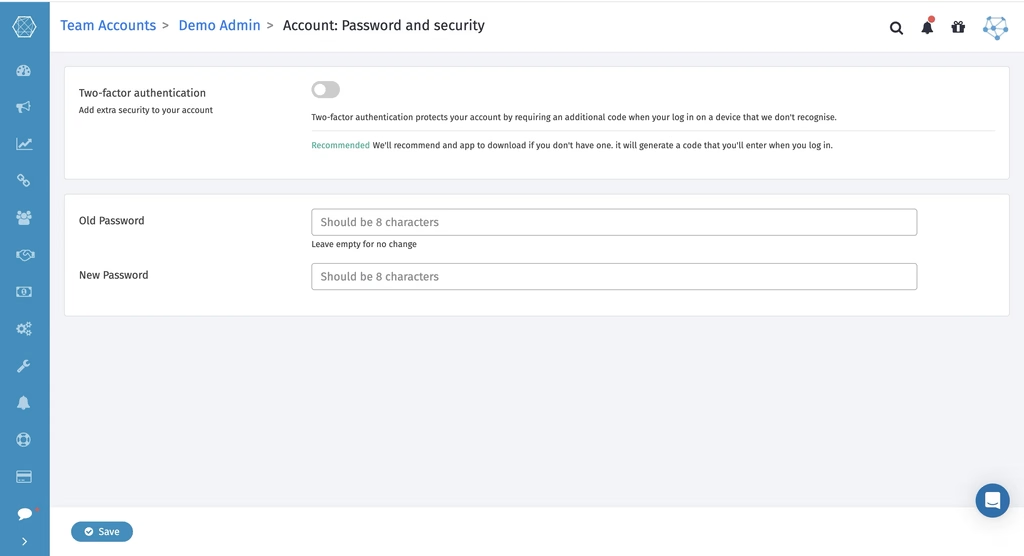
Step 2: Go to Password and Security
Inside your profile, navigate to the Password and Security section. Locate the Two-Factor Authentication option and enable it.
Step 3: Download an Authentication App
To generate your verification codes, you’ll need an authentication app on your mobile device. Trackier recommends Google Authenticator.
Step 4: Scan the QR Code
After enabling 2FA, Trackier will display a QR code. Open your authentication app and scan the QR code to connect your account with the app.
Step 5: Enter the 6-Digit Code
Your authentication app will begin generating a 6-digit verification code after the QR code is scanned. Enter the current code in Trackier to complete the setup. Once the code is verified, Two-Factor Authentication will be activated for your account.
Save Your Backup Codes
After completing the 2FA setup, Trackier provides backup codes. These codes can help you regain access to your account if you cannot access your authentication app.
You may need a backup code if:
- You lose your phone.
- Your phone is reset or replaced.
- Your authentication app is deleted.
- You temporarily lose access to your authentication device.
Store your backup codes somewhere secure, such as a password manager, secure digital file, or safely stored physical copy.
Do not share your backup codes with anyone.
What If You Lose Access to Your Authentication App?
If you cannot access your authentication app during login, try using one of your saved backup codes.
If you still have access to the device where your authentication app is installed, open the app and use the current 6-digit verification code.
If you have lost access to both your authentication app and backup codes, contact your panel administrator or Trackier support team for assistance.
To reduce the risk of being locked out:
- Save your backup codes immediately after enabling 2FA.
- Keep your authentication app accessible when changing devices.
- Reconfigure 2FA when moving to a new phone.
Make Your Trackier Account More Secure
The March 2024 product updates introduced an important security enhancement for Trackier users with Two-Factor Authentication.
By adding a second verification step during login, 2FA helps provide additional protection for accounts containing sensitive campaign, conversion, publisher, advertiser, payment, and account information.
Setting up 2FA takes only a few minutes and can significantly strengthen the security of your Trackier account.
Enable Two-Factor Authentication from Profile → Password and Security to add an extra layer of protection to your account.
For assistance, contact the Trackier support team at support@trackier.com or use the in-platform chat feature.