Isn’t it common for a potential customer to visit a product page, spend time on it, and not make a purchase?
They drop off and continue scrolling on their phone. They might go to Instagram, browse a new site or maybe watch a video. There, they see an ad for the exact product they looked at on the product page. This is not a mere coincidence. This is retargeting.
For performance marketers, retargeting ads is one of the most common practices. Users who have already viewed your product and may have even the slightest interest in it are more likely to convert than users encountering your product for the first time. This is where retargeting tags feature comes into picture.
The main question that arises here is: how do you set up such ads in your affiliate campaign, and how does Trackier’s retargeting feature help?
That is exactly what this article is about.
What are Retargeting Tags?
This tag, also known as a remarketing pixel or retargeting pixel, is a small piece of code that is set on a webpage. When the page is visited, the tag quietly logs that visit. This does not require any action from the user, per se. They do not have to click anywhere or have to make any sign-ups. The only action that they do is view your page.
The information collected through this tag is then used by ad platforms, this could be Google Ads, Meta Ads, or any other platform. The purpose here is to identify the user and serve them relevant ads as they browse elsewhere on the internet.
The retargeting tags are like a quiet note that says, “The person came here and left, let us follow up.”
Why Does It Matter in Affiliate Marketing?
In affiliate marketing, a lot of traffic is sent to landing pages. Some of it converts, but a significant portion doesn’t. This part of the traffic is not necessarily irrelevant. And if there is no retargeting, then this non-converting traffic, too, is gone.
The click happened, the publisher got their attribution, but the user left, and there is no way to re-engage them.
With the help of retargeting tags, the user who visited but did not convert can be brought back into the funnel. Through this feature, the idea of starting from scratch gets eliminated because the aim is to follow those potential customers who already know your brand. Additionally, this makes the campaign performance significantly better.
Apart from recovery, retargeting also helps with –
- Building segmented audiences based on specific user behaviours (visited a page vs. added to cart vs. reached checkout)
- Reducing wasted ad spend by focusing on warm traffic rather than cold audiences
- Running coordinated campaigns across platforms, be it on Google, Facebook, or any other platform where they spend time
How Does It Work on Trackier?
Publishers, especially those who work with ad agencies, collect retargeting pixels from ad platforms like Google and Facebook. These are actual code snippets that do the tracking.
To set this up, you start by selecting the publisher you want to configure the tag for. Once the publisher is selected, you paste their retargeting code into the respective field. This publisher-level selection ensures the tag is attributed to the right source from the start.
- Trackier allows you to insert these codes directly in the campaign settings.
- Once entered, Trackier automatically generates a script.
- The script is placed on the website
When someone lands on the page, the following actions take place –
- Script is fired
- Pixel collects the data
- User becomes a part of the retargeted audience for that ad platform
It must be noted, however, that the reports for this activity do not live inside Trackier. They instead appear on the platform that the pixel belongs to. Hence, if the tag is from Google Analytics, the retargeting data will show up there.
Campaign Level vs Global Retargeting Tags
There are two ways that you can set retargeting tags on Trackier. What you choose depends on how broadly you want to track.
Campaign Level Tags
These tags are tied to specific campaigns and are configured directly inside the campaign settings on Trackier. If the aim is to target users who interacted with a particular campaign or offer, this tag is the most relevant in that case. This is because the generated script is specific to that campaign only.
Global Retargeting Tags
These tags can be applied across all campaigns and are set up through the Global Retargeting Pixels section on Trackier. These tags are useful if the aim is to build a broader audience. The idea is to reach out to all visitors to the platform, regardless of the campaign that brought them there. However, the tag can still be customer-specific retargeting codes even at this level.
Both options allow selecting specific publishers and their retargeting codes. This means the tag can be attributed correctly, and different publishers can have different retargeting setups running simultaneously.
Managing Tags Across Multiple Domains
It is common for a campaign to run on more than one website. This is why Trackier’s retargeting tags setup also promotes multiple domains.
Up to five different domains can be linked to the tags from within the same interface and they can be switched just by clicking on the dropdown option
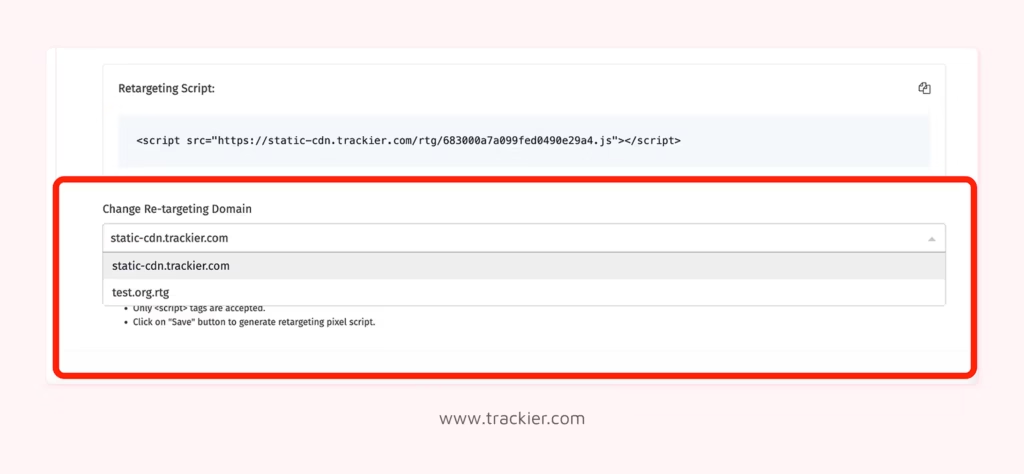
This feature is especially useful for brands that have to manage multiple properties and do not wish to handle each of them as a completely different setup.
Note: If you need a new domain added to your account, that’s done through your account manager rather than directly from the settings panel.
A Few Things Worth Knowing
Before moving forward with this setup, it is necessary to take some things into consideration
- Trackier only supports the <script> tag, any other tag does not work in the retargeting section
- After adding or editing a tag, allow 5 to 10 minutes for the changes to reflect before testing.
- The retargeting reports will always stay on the external platform where the pixel originated and not in Trackier’s own reporting dashboard.
The Bigger Picture
While most performance marketing efforts keep their focus on clicks and conversions, retargeting comes in the middle and fills the gap between the two. It provides a structured way to bring back the users who show interest but did not follow through.
Setting it up inside Trackier keeps it within the same ecosystem where your campaigns are already running, which makes it easier to manage, attribute, and scale as your programme grows.
Need Help?
If you run into any issues while setting up retargeting tags or configuring them across campaigns, Trackier’s support team is available via the in-platform chat or at support@trackier.com. We’ll make sure your audience data is always working as hard as your campaigns.
FAQ
Can I add multiple retargeting tags from different publishers to the same campaign?
Yes. Trackier lets you add retargeting tags at the publisher level. This means different publishers can have separate tags running on the same campaign. It is also ensured that all of them are attributed correctly to the right source.
Do retargeting tags slow down my website?
Since retargeting tags are lightweight script-based pixels, the impact on page load speed is minimal. However, adding a large number of tags across multiple campaigns can have a cumulative effect, so it’s good practice to audit them periodically.
What’s the difference between setting up retargeting tags at the campaign level versus globally?
Campaign-level retargeting tags track users from a specific campaign, making them ideal for targeted promotions. Global retargeting tags capture all visitors across every campaign, helping you build broader audiences for general remarketing efforts.
Will retargeting tags work if a user has an ad blocker enabled?
Most ad blockers are designed to block third-party tracking scripts, which means retargeting tags may not fire for users who have them enabled. This is a platform-level limitation and not specific to how retargeting tags are configured on Trackier.
