Your advertiser approved a budget for 500 conversions this month. Conversion number 501 lands anyway. Then 502. By the time someone notices, you are absorbing the cost of traffic nobody agreed to pay for, and the advertiser conversation just got uncomfortable.
CAP limits in Trackier exist so this never happens. A CAP lets you define a maximum threshold on clicks, conversions, revenue, payout, or impressions, and Trackier automatically pauses delivery the moment that threshold is reached. This guide covers what CAPs are, how to configure them at the campaign, publisher, geo, and landing page levels, what happens to traffic after a limit is hit, and how to monitor CAP utilization inside your panel.
What are CAP limits?
A CAP is a limit you set on a specific KPI for a campaign. When the defined limit is reached, Trackier automatically pauses the campaign or the relevant traffic segment. This prevents overspend, protects advertiser budgets, and keeps your delivery within agreed limits without anyone watching a dashboard at midnight.
CAPs can be applied at multiple levels:
- Campaign level: applies to all traffic across the entire campaign
- Publisher level: applies to specific publishers or groups of publishers
Why use CAP limits?
Automatically pause campaigns when advertiser budgets are exhausted. Prevent overspend by enforcing hard limits on clicks, conversions, or revenue. Redirect capped traffic to other campaigns or Smart Links instead of losing it. Manage publisher-level traffic volumes with individual or group limits. Stay within geo-specific quotas set by your advertisers
How to Add a CAP Limit?

To set CAP limits, open the relevant campaign in your Trackier panel, go to Settings, and click +Add CAP.
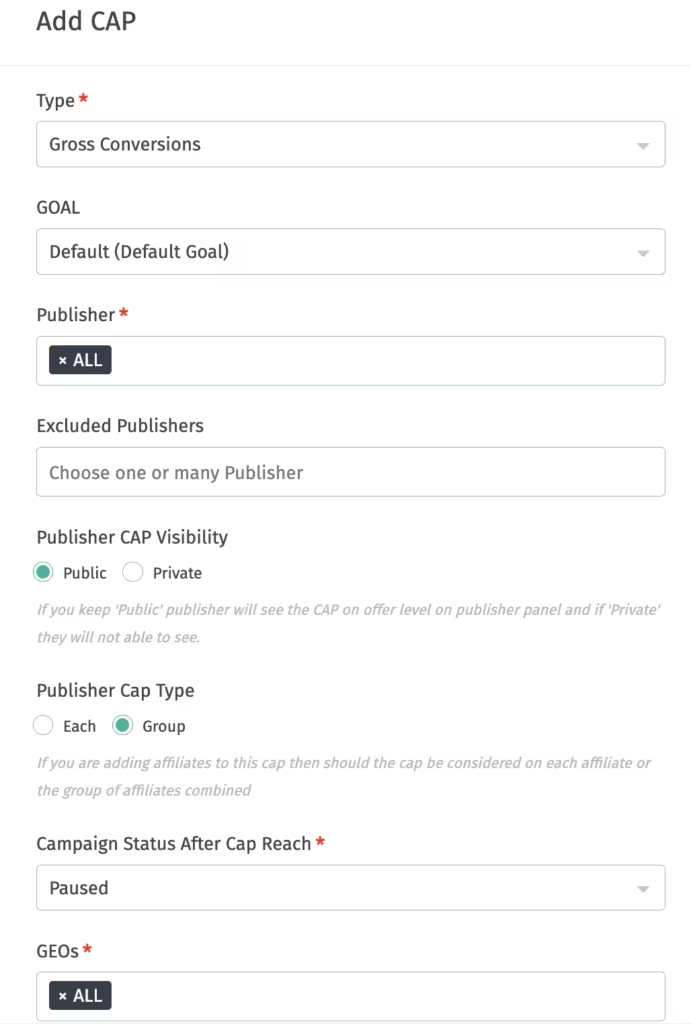
One thing to know upfront: a CAP takes approximately 5 to 10 minutes to activate in tracking, and a similar time to pause delivery once the limit is reached. Some spillover clicks or conversions on the tracking URL within that 10 minute window is expected behaviour.
CAP Configuration Fields
Type
Select the KPI you want to cap:
- Gross Conversions: All conversions, including approved, pending, rejected, and cancelled
- Approved Conversions: Only conversions that have been approved
- Pending Conversions: Only conversions currently in a pending state
- Gross Clicks: All clicks, including rejected ones
- Clicks: All clicks, excluding rejected clicks
- Payout: Total payout amount
- Pending Payout: Payout amount currently in a pending state
- Gross Revenue: Total revenue, including pending and approved amounts
- Pending Revenue: Revenue amount currently in a pending state
- Impressions: Total number of impressions
Gross Sale Amount: Total sale amount, including all statuses
Goal
If your campaign has multiple goals or events, you can apply a CAP to a specific goal.
Leaving this field as “–” applies the CAP to the campaign’s default goal.
Publisher
Selecting a specific publisher makes it a publisher-specific CAP. Selecting “ALL” keeps it at the campaign level.
Exclude Publishers
If you want the CAP to apply to all publishers except a few, list the exceptions here.
Publisher CAP Visibility
You control whether publishers can see the CAP on their interface. Select Public and the CAP is visible to them at the offer level. Select Private and it stays hidden.
Publisher CAP Type
If you select multiple publishers, say five, you choose how the limit applies:
- Each: every publisher individually gets X clicks or conversions on a daily, monthly, or lifetime basis
- Group: the five publishers combined share X clicks or conversions on a daily, monthly, or lifetime basis
Landing Pages and GEOs
If your campaign runs multiple landing pages, you can cap each one individually. The same applies to geos, campaigns with multiple geos can carry geo-level CAPs to respect advertiser quotas per market.
Campaign Status After CAP Reach
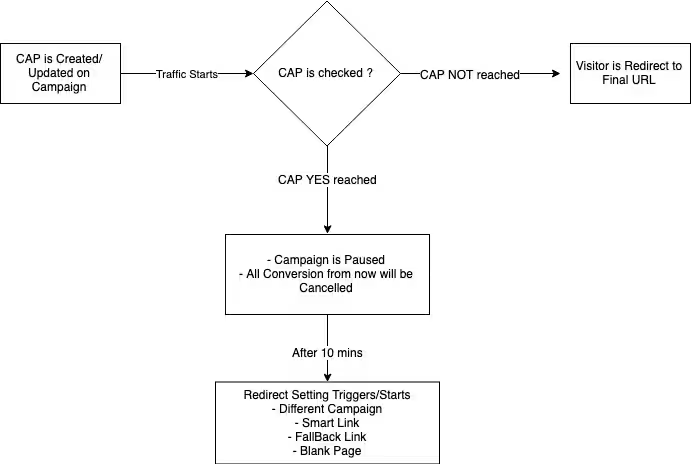
Define what status the campaign should move to once the CAP limits are hit. When a campaign-level CAP is reached, the system pauses the campaign. When a publisher, geo, or landing page CAP is reached, only that specific traffic segment is paused.
One clarification worth noting: if conversions appear cancelled after the cap is reached, those belong to clicks that were attributed before the cap was hit. This is expected behaviour, not a tracking error.
Choosing the Right CAP Duration
Hourly
Hourly caps control volume within a one hour window. Once the CAP limits are reached, the campaign pauses until the next hour begins. Hourly caps can only be applied to gross clicks, clicks, unique clicks, and gross conversions.
Hourly caps behave differently from the other durations: they only count activity that occurs after the cap is applied. If 30 conversions have already happened and you then apply a cap of 10, counting starts from that point. After 10 more conversions, totalling 40, the campaign pauses.
Daily
Daily caps are the workhorse. The system checks the daily limit continuously and pauses the campaign as needed, so the number will not exceed your cap. Ideal for managing daily budgets and pacing.
Monthly
Monthly caps suit clients working against a monthly budget. Keep in mind the system checks monthly caps every half hour, so a small number of exceeded conversions can slip through before the cron stops traffic.
Lifetime
Lifetime caps apply across the life of the campaign, which Trackier considers to be 90 days.
Important: monthly and lifetime caps are not enforced in real time. For better pacing and control, set a daily cap alongside your monthly or lifetime limit.
Also note that for monthly and lifetime caps, past activity counts. If a campaign and publisher have already recorded 100 conversions and you apply a cap afterwards, those 100 actions count toward the limit. If you update the cap value mid-day, the system recalculates against the total, including everything previously recorded.
What Happens When a CAP Is Reached
CAP Over Delivery
- Set over delivery to Yes and traffic will not be paused, but spillover conversions will still be cancelled. This applies to daily caps only.
Pause Campaign and Links
- Select No and traffic arriving via Smart Link is redirected to the fallback campaign. Select Yes and users hitting the capped campaign see an offer_not_active error.
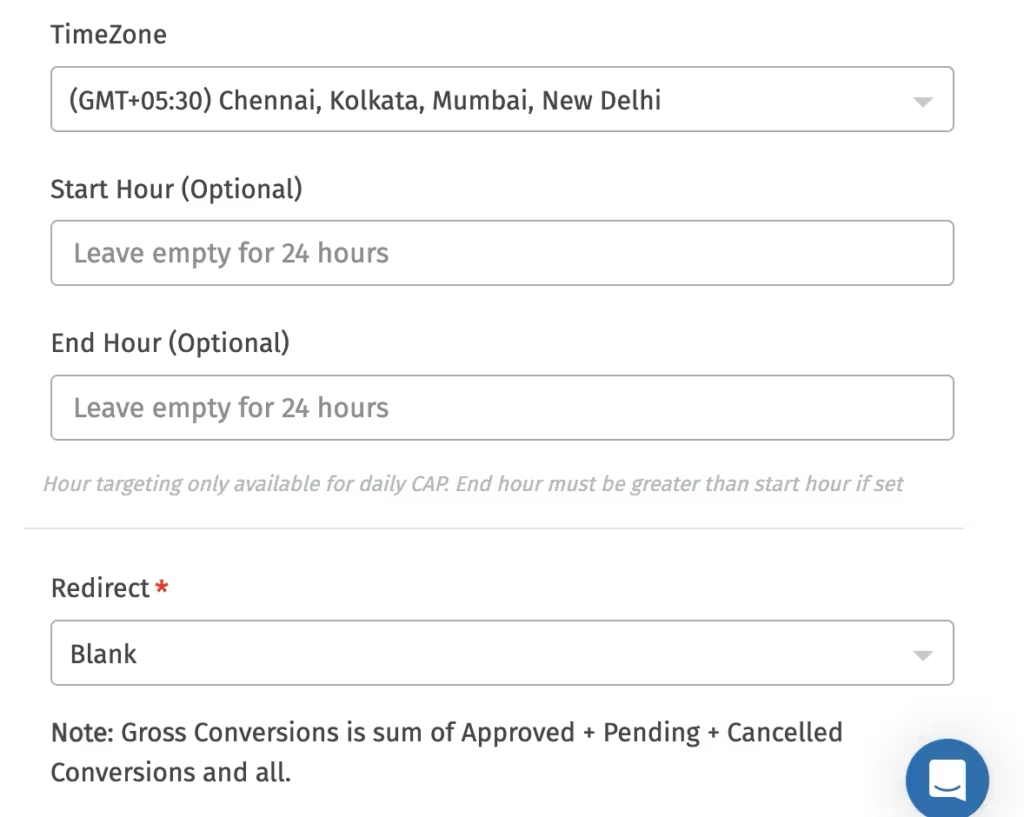
Timezone
- If your advertiser operates in a different timezone, you can set the timezone at the CAP level so the 24 hour clock syncs with theirs.
Redirect Options
If over delivery is set to No and the campaign pauses, you decide where the traffic goes instead of losing it:
- A blank page
- A different campaign
- A Smart Link
- The Fallback URL
One manual step to remember: if a cap is reached and a publisher’s tracking link gets paused, then you change the cap manually that same day, you need to re-enable that publisher’s tracking link yourself from the Manage Links section on the campaign description page. The system resumes automatic checks from the next day onwards.
Monitoring Your CAPs
Once a cap is set, you can track its usage and remaining balance under the Campaign Management section.
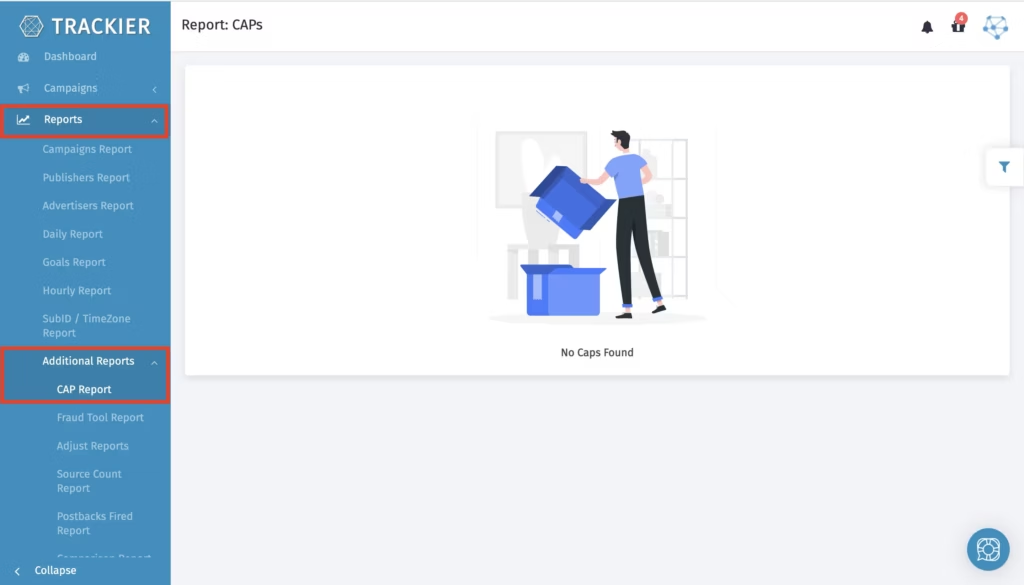
For a consolidated view, go to Reports and open the CAP Report. It shows what percentage of each CAP has been consumed, so you can spot campaigns approaching their limits before they pause.
Running Click and Conversion CAPs Separately
By default, hitting a click cap affects conversions too. If you want them delinked, go to campaign settings in the Customise menu and enable the toggle that separates click caps from conversion caps. With the toggle on, conversions are not cancelled when the click cap is reached. They are only cancelled when the conversion cap itself is hit.
Also worth knowing: link disabling is now goal-based. Previously, when a CAP was reached, the publisher’s link was disabled regardless of which goal the traffic belonged to. Now links are disabled based on goal-specific traffic, which makes enforcement far more accurate.
Need Help?
If you run into any issues while setting up CAPs, configuring redirects, or interpreting your CAP Report, our support team is available via the in-platform chat or at support@trackier.com.
We will make sure your limits are enforced exactly the way you planned, your budgets stay protected, and not a single click of capped traffic goes to waste.
FAQs
What are CAP limits in Trackier and how do they work?
CAP limits are maximum thresholds you set on clicks, conversions, revenue, payout, or impressions for a campaign. Once the defined limit is reached, Trackier automatically pauses the campaign or the specific traffic segment, protecting advertiser budgets without manual monitoring.
Can I set CAP limits at the publisher, geo, or landing page level?
Yes. CAP limits can be applied at the campaign level for all traffic, or at the publisher, geo, and landing page levels. For multiple publishers, you can choose Each to give every publisher its own limit or Group to make them share a combined one.
Why did conversions come through after my CAP limits were reached?
CAP limits take approximately 5 to 10 minutes to activate and pause delivery, so brief spillover is expected. Also, monthly and lifetime CAP limits are checked every half hour rather than in real time. Pairing them with a daily cap gives you tighter control.
What happens to my traffic once CAP limits are hit?
Instead of losing capped traffic, you can redirect it to another campaign, a Smart Link, the Fallback URL, or a blank page. If no redirect is set, the campaign or the relevant publisher, geo, or landing page segment simply pauses until the limit resets.
