You have campaigns live. You have publishers sending traffic. But conversions are not showing up, or they are showing up for the wrong publisher, or not at all. Nine times out of ten, the problem is in the postback.
Postback setup is one of those things that looks simple until something breaks. A wrong macro, a mismatched parameter, a postback that was never approved, any one of these quietly kills your attribution. This article walks through how to set up both publisher and advertiser postbacks in Trackier, including the correct formats for the platforms your partners are most likely using.
What a Postback Actually Does
Before getting into the steps, it helps to understand the flow. When a user clicks a publisher’s tracking link, Trackier assigns a unique click ID to that session. If that user converts, the advertiser’s system fires a postback back to Trackier, passing that click ID. Trackier uses the click ID to attribute the conversion to the right publisher and trigger the publisher postback, paying out the right partner for the right action.
If any part of that chain is broken, wrong click ID parameter, mismatched macro, or disabled postback, the attribution fails. The conversion may still happen, but Trackier will not know who to credit.
Setting Up the Publisher Postback
Publisher postbacks tell Trackier to fire a notification to the publisher’s system when a conversion happens on their traffic. Here is how to add one.
Go to Publishers > Postback/Pixels, click Actions, and select New Postback. Select the event you want it to fire on. This can be a Conversion, a Goal, or both. Choose the publisher and the campaign, set the type to Postback, and paste the URL the publisher has provided. Set the status and conversion status, then click Add.
That is the setup. However, there is one important thing to note: postbacks added by publishers go directly through admin approval before becoming active. If a publisher tells you their postback is not firing, the first place to check is whether it has been approved.
If the postback is approved and still not firing, check for parameter mismatches, confirm the postback is enabled for all events, and verify that conversions are actually being recorded on your end. A postback cannot fire on a conversion that Trackier has not received.
If you are managing a large number of publishers, you can also upload postbacks in bulk via CSV instead of adding them one by one.
Generating a Tracking Link for Your Publisher
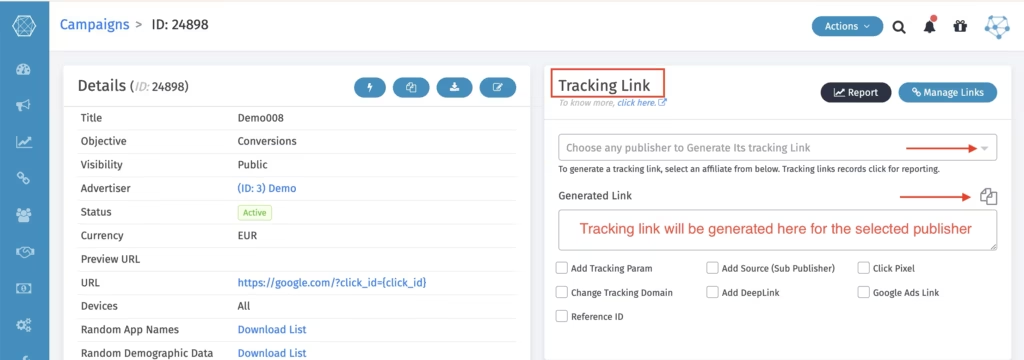
Once the postback is set, your publisher needs a tracking link. Go to Campaigns > Manage Campaigns, find the campaign, and scroll to the Tracking section. Select the publisher from the dropdown, and Trackier will generate a link for the same.
Copy and share this link with the publisher. Ask them to replace {click_id} with their own click ID macro, whichever one their platform uses. What that macro looks like depends on which platform they are on.
Platform-Specific Formats
This is where most postback problems start. Every platform has its own macro syntax for passing the click ID, and using the wrong one means Trackier never receives it back. Below are the correct formats for the platforms Trackier integrates with most.
Trackier to Trackier
If your publisher is also running on Trackier, the formats are straightforward.
Publisher postback URL (what you set in your panel for their network): https://PublisherPostbackDomain/acquisition?click_id={p1}&security_token=xxxxx
Tracking link you share with them: https://YourDomain/click?campaign_id=xx&pub_id=xx&p1={click_id}
Advertiser postback from Trackier (what you give your advertiser): https://YourDomain/acquisition?click_id={p1}&security_token=xxxxxx
For CPS campaigns, add the sale amount macro: https://YourDomain/acquisition?click_id={p1}&security_token=xxx&sale_amount={amount}
Admitad
Admitad uses bracket-style macros. SubID1 through SubID4 can carry values like subaccount, source ID, affiliate ID, creative ID, or adset ID.
Publisher postback: http://www.yourserver.com/start.php?offer_id=[[[campaign_id]]]&subid4=[[[p1]]]
Advertiser postback: https://YourDomain/acquisition?click_id={subid4}&security_token=xxx
CPS: replace with &sale_amount={payment_sum}
Affise
Affise uses {clickid} and {sub1} through {sub8} macros. Either can carry the click ID.
Publisher tracking link: https://YourDomain/click?campaign_id=xx&pub_id={pid}&p1={clickid}
Advertiser postback: https://YourDomain/acquisition?click_id={sub1}&security_token=xxx
CPS payout macro: {sum}
Cake
Cake uses #reqid# and #s2# notation.
Publisher tracking link: https://YourDomain/click?campaign_id=xx&pub_id=xx&p1=#reqid#
Advertiser postback: https://YourDomain/acquisition?click_id=#s2#&security_token=xxx
CPS payout macro: #price#
Keep Cake’s character limits in mind, as long values can get truncated.
Everflow
Publisher postback: https://PublisherPostbackDomain/?nid=###&transaction_id={p1}
Publisher tracking link: https://YourDomain/click?campaign_id=xx&pub_id={affiliate_id}&p1={transaction_id}
Advertiser postback: https://YourDomain/acquisition?click_id={sub1}&security_token=xxx
CPS payout macro: {payout_amount}
HasOffers / Tune
Publisher postback: http://PublisherPostbackDomain/aff_lsr?offer_id=xxx&transaction_id={p1}
Publisher tracking link: https://YourDomain/click?campaign_id=xx&pub_id={affiliate_id}&p1={transaction_id}
Advertiser postback: https://YourDomain/acquisition?click_id={aff_click_id}&security_token=xxx
CPS payout macro: {payout}. Use {transaction_id} if working with transaction IDs, or {affiliate_id} for publisher ID.
Impact
Impact does not use a publisher postback in the traditional sense. The tracking link handles it.
Publisher tracking link: https://YourDomain/click?campaign_id=xx&pub_id={SubId2}&p1={transaction_id}
Advertiser postback: https://YourDomain/acquisition?click_id={SubId1}&security_token=xxx
CPS: &sale_amount={Amount}
Swaarm
Publisher postback: https://PublisherPostbackDomain/postback?click_id={p1}
Publisher tracking link: https://YourDomain/click?campaign_id=xx&pub_id=xx&p1={pub_click_id}
Advertiser postback uses Swaarm’s own macro syntax: https://YourDomain/acquisition?click_id=#{click.publisher.clickId}&security_token=xxx
CPS: &revenue=#{payout.theyGetInDollars}
Tradedoubler
Tradedoubler uses {epi} and ${epi} notation, with ${orderValue} and {publisherCommission} for revenue sharing.
Publisher tracking link: https://YourDomain/click?campaign_id=xx&pub_id=xx&p1={epi}
Advertiser postback: https://YourDomain/acquisition?click_id=${epi}&security_token=xxx
CPS: &sale_amount=${orderValue}&revenue={publisherCommission}
Before You Go Live
A few things are worth confirming before you start sending live traffic through any postback setup.
Run a test, click through the tracking link, and verify the click is registered in Trackier. Then trigger a test conversion on the advertiser side and check whether it comes back with the correct click ID. If it does not, open the advertiser postback hit logs to see what was actually sent and where the mismatch is.
On the publisher side, confirm the postback has been approved in your panel. Confirm the macro placeholder in the tracking link has been replaced by the publisher with their actual macro. And make sure you have not set up overlapping publisher and advertiser postbacks in a way that could cause duplicate conversions.
Keep a reference sheet of all the macros and parameters for each platform you work with. Postback formats do not change often, but when something breaks, having that reference cuts troubleshooting time significantly.
Need help?
If you are running into postback issues or need to confirm the right macro setup for a platform not covered here, Trackier’s support team is available via the in-platform chat or at support@trackier.com.
FAQs
Why is my publisher postback not firing even though it is set up?
There are usually three causes. First, the postback may be pending admin approval, as publisher-added postbacks require approval before they go active. Second, there may be a parameter mismatch between what the publisher expects and what Trackier is sending. Third, no conversion may have been recorded on Trackier’s side, which means there is nothing to trigger the postback. Check all three before assuming the postback URL is wrong.
What is the difference between a publisher postback and an advertiser postback?
The advertiser postback is fired by the advertiser’s system to notify Trackier that a conversion happened. It passes the click ID so Trackier can attribute the conversion. The publisher postback is then fired by Trackier to notify the publisher’s system that their traffic converted. They work in sequence, advertiser postback first, publisher postback after.
Can I use the same advertiser postback URL format across different platforms?
No. Every platform has its own macro syntax for passing the click ID. Using Affise macros with a Cake advertiser postback, for example, will result in a blank or literal value being sent back to Trackier, and the conversion will not be attributed. Always use the platform-specific macros listed in this article or in Trackier’s documentation.
What happens if postbacks are set up on both the publisher and advertiser side for the same event?
If not managed carefully, this can result in duplicate conversions. Avoid overlapping postback setups for the same event. Use Trackier’s postback settings to control exactly which events trigger which notifications, and test thoroughly before scaling.
Can I add multiple advertiser postbacks at once?
Yes. Instead of adding them one at a time, you can upload them via a CSV file from the Postback/Pixels section. This is useful when you are onboarding a large number of advertisers or migrating postback setups in bulk.
