June has been a productive month at Trackier, bringing two important improvements that help to make data handling faster, campaign setup more flexible, and your day-to-day performance workflows more efficient.
These product updates simplify bulk conversion uploads via Google Sheets and provide you with more customisation options inside your campaigns.
Here is a complete breakdown of what is new and how each enhancement strengthens your performance marketing operations.
1. Google Sheets Integration for Automated Conversion Uploads
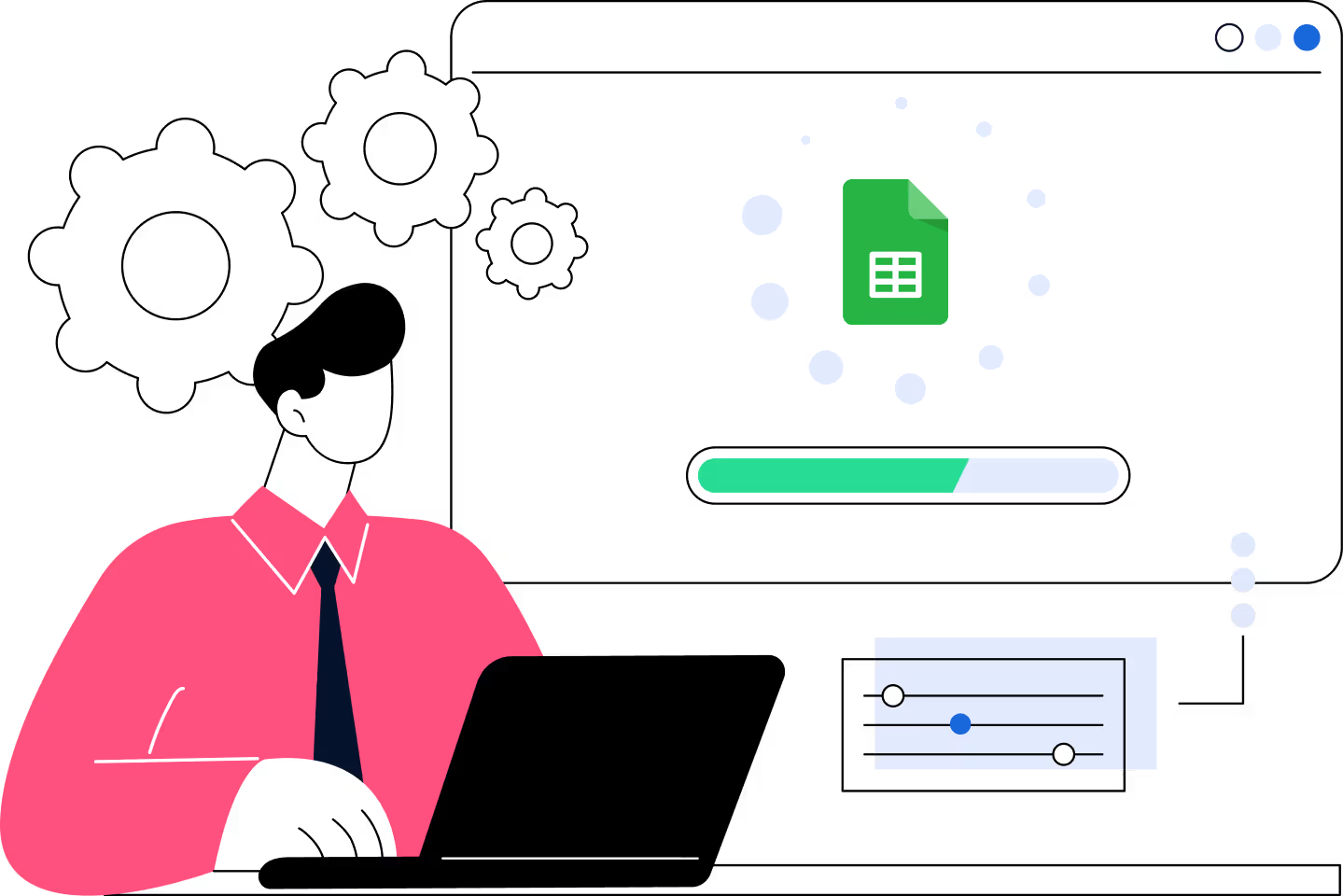
Trackier now supports seamless integration with Google Sheets, allowing automatic syncing of conversion data from sheets to your panel.
This eliminates the repetitive task of manual bulk uploads, making high-value conversion management significantly faster and less error-prone.
What is new?
- Auto-sync conversions from Google Sheets to Trackier.
- No manual CSV uploads needed.
- Error-free uploads because the script validates and pushes clean data.
- Support for large datasets, ideal for teams handling thousands of conversions.
- Perfect for cross-team collaboration, where multiple people work on a single sheet.
How Does it Work?
- Click record automation – Once your Google Apps Script is connected, Trackier automatically picks up new rows from your sheet and syncs them into your panel.
- API-driven data push – Your API key is securely used inside the script to authenticate and push conversions without needing manual intervention.
- Scheduled execution – Once permissions are approved, Google automatically runs the script as per execution rules, ensuring continuous syncing.
Why Does it Matter?
Uploading conversion manually takes time and often causes mistakes. This integration fixes all of that.
- Saves hours of repetitive work.
- Removes manual input errors.
- Ensures your reporting is always up to date.
- Helps you maintain real-time data accuracy for payouts, billing, and optimisation.
How to Use It?
Step 1: Open your Google Sheets → Extensions > Apps Script
Step 2: Paste the provided conversion sync script.
Step 3: Add your Trackier API key inside the script.
Step 4: Click on “Save Project”, then Run.
Step 5: Approve the required Google permissions.
Step 6: Your sheet will display “Job has been scheduled”.
Step 7: All new conversion data will auto-sync to your Trackier panel.
Once everything is set up, no further action is needed; everything works in the background.
2. Custom Fields for Campaign Setup
Every brand has unique requirements for its campaigns, and not all essential data fits into default fields. To solve this, Trackier now allows you to create custom fields inside campaigns, providing you with full control over the attributes you want to collect or manage.
What is new?
You can now add custom fields such as:
- Text fields
- Data selectors
- Drop-down (Select) fields
- Multi-select options
- Validated fields (alphanumeric, numeric, custom formats like IFSC/PAN)
- Required or optional fields
- Fields hidden from publishers (if needed)
Why Does it Matter?
With this update:
- Campaign setup becomes more flexible.
- You can store unique business requirements directly in campaign data.
- Internal teams get a richer context while managing campaigns.
- Sensitive fields can be hidden from publishers.
- Validation ensures clean and accurate data entries.
How to Use It?
Step 1: Go to Customize in the side menu
Step 2: Select Custom Fields → Campaign
Step 3: Click Add New
Step 4: Choose field type (text, date, select, etc.)
Step 5: Set required/optional behavior
Step 6: Add validation (if needed)
Step 7: Save the custom field.
Your new field will now appear:
- In the campaign creation form
- On the campaign info page
- In your internal workflow, as a structured attribute
3. Featured Campaigns Based on Affiliate Traffic Channels
We have introduced a smarter way to surface campaigns to affiliates via traffic channels, based on featured campaigns. Whenever your affiliates sign up, they’re now prompted to select their traffic channel.
Admins can manage and map these traffic channels within the campaigns section in the side menu. Based on the selected channel, affiliates will only see campaigns that are relevant to their chosen traffic source.
Why Does it Matter?
This update enhances the experience for affiliates and boosts the campaign performance:
- Affiliates discover relevant offers
- Reduces mismatched traffic and low-quality conversions
- Help advertisers get more aligned traffic
- Improves activation and engagement for new affiliates
How to Use It?
- Affiliates select their traffic channel during registration.
- Admins configure traffic channels inside the campaign menu.
- Assign campaigns to appropriate traffic channels.
- Relevant campaigns automatically appear under Featured Campaigns for affiliates.
Impact and Benefits
| Update | Value/Problem Solved |
| Google Sheets integration | Automates conversion uploads, reduces manual work, and improves data accuracy. |
| Custom fields for campaigns | Provide flexibility to store unique campaign data with validations and visibility control. |
| Featured campaigns by traffic channel | Improves campaign relevance for affiliates, better traffic quality, and faster affiliate activation. |