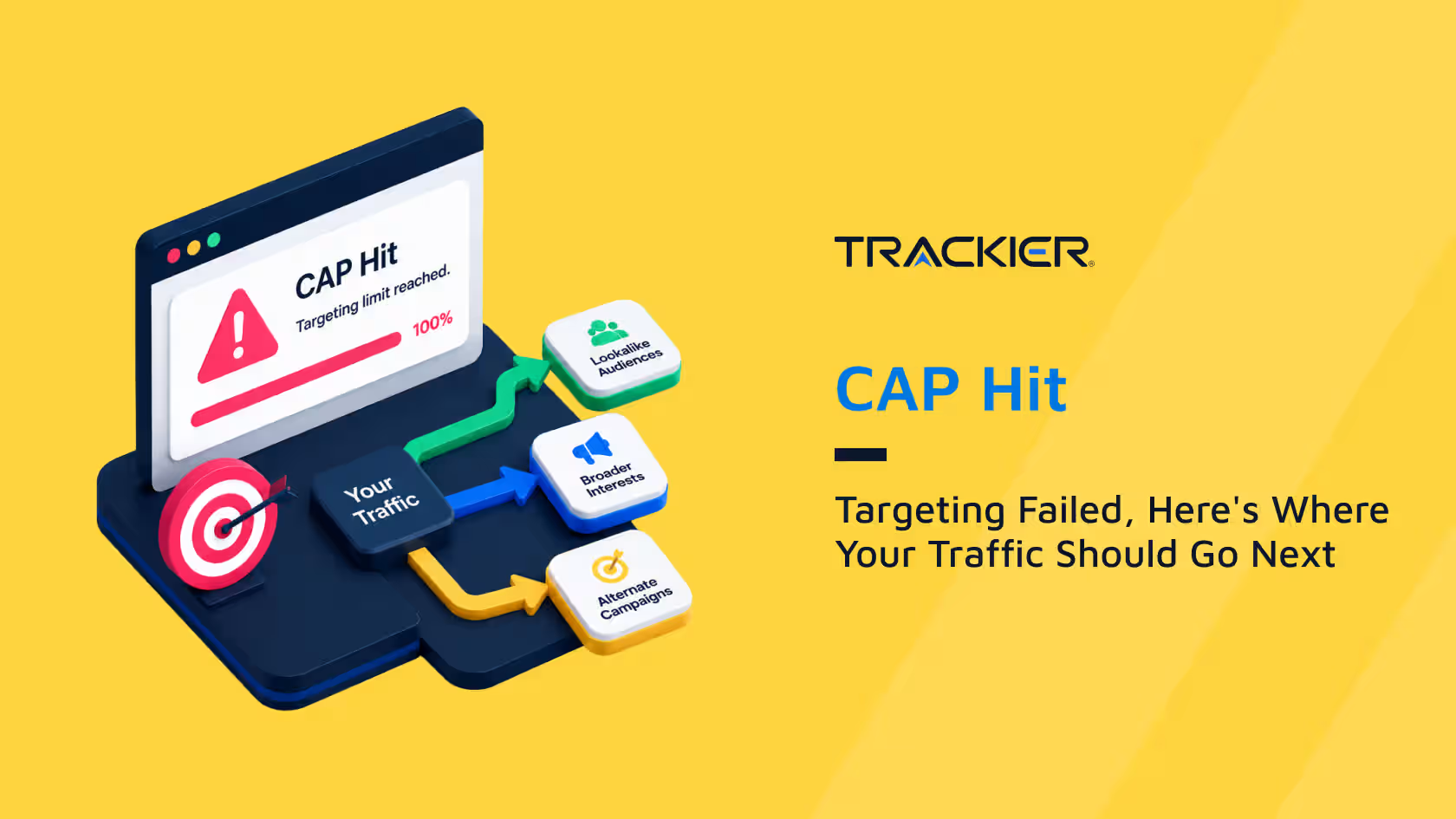
Not every click that lands on your campaign is going to convert. Some will miss your targeting parameters. Some will arrive after your CAP has been reached. Without a fallback setup, that traffic simply disappears, untracked, unmonetised, and invisible in your reports.
Trackier’s fallback traffic feature gives you a way to redirect that traffic intelligently instead of letting it go to waste. This guide covers how fallback traffic works, where you can configure it, and the key settings that give you precise control over what happens when a campaign cannot serve a visitor.
What Is Fallback Traffic?
Fallback traffic refers to visits that cannot be served by the original campaign they landed on. Trackier automatically redirects this traffic to a URL or campaign you define in advance, based on rules you set up.
Two main scenarios trigger a fallback redirect. The first is when incoming traffic fails to meet the campaign’s targeting or restriction criteria, such as geo, device type, or operating system.
The second is when the campaign has reached its conversion CAP and is no longer accepting traffic.In both cases, instead of the visitor hitting a dead end, Trackier routes them to wherever you have set as the fallback destination.
Why Fallback Traffic Setup Matters
In performance marketing, traffic that does not convert is still traffic you paid for or traffic your publishers sent. Letting it evaporate is a direct loss. A fallback setup means that even when a campaign cannot serve a visitor, that visitor still has somewhere useful to go.
Beyond traffic recovery, fallback setup also keeps your reporting accurate. If fallback traffic lands on another campaign without proper configuration, you lose visibility into where those clicks originated.
Trackier addresses this by letting you track fallback conversions separately and report on them by referrer campaign, which gives you a clear picture of how much traffic is spilling over and from where.
There is also an operational benefit. When campaigns pause due to CAP being reached, a good fallback setup means publishers do not suddenly experience dead links. Their traffic keeps flowing, which protects your relationships and your platform’s reliability.
Fallback Priority: Campaign, Advertiser, Global
Trackier operates fallback logic across three levels, and the priority order matters. Campaign-level fallback takes precedence first. If no campaign-level fallback is configured, Trackier checks for an advertiser-level fallback. If neither exists, the global fallback URL applies.
This hierarchy means you can set a broad global fallback as a safety net while configuring more specific rules at the campaign or advertiser level for offers that need tighter control.
Setting Up Campaign-Level Fallback
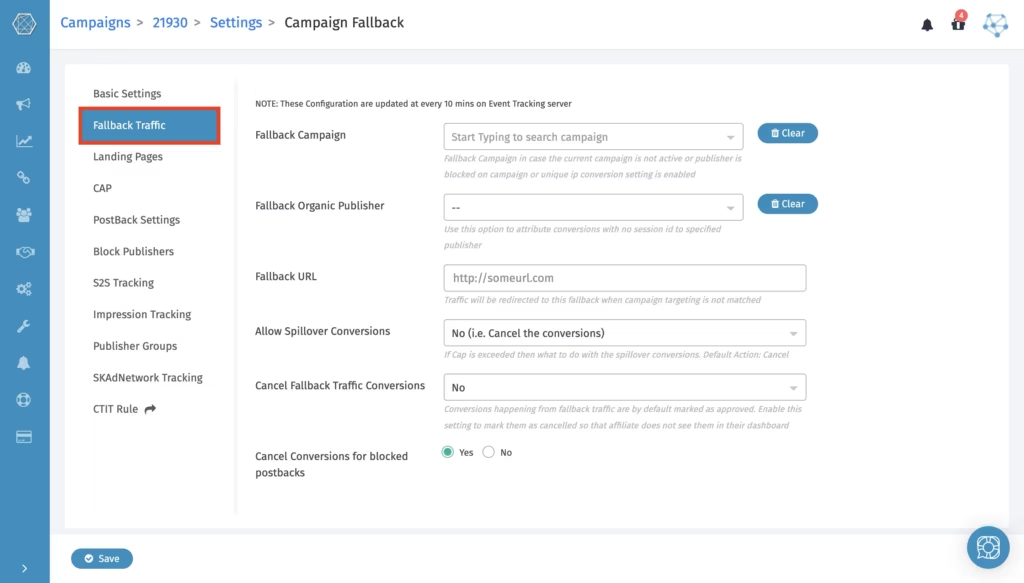
To configure fallback at the campaign level, open the specific campaign, click on Settings, and navigate to Fallback Traffic. Here, you can define where traffic should go when campaign conditions are not met or when the campaign is paused for any reason.
You have two primary destination options:
- Fallback Campaign: Select another campaign on your platform to receive the redirected traffic. This is useful when you have a similar or related offer that can absorb the overflow. When both a fallback URL and a fallback campaign are configured, the fallback campaign always takes priority.
- Fallback URL: Add any external URL to redirect traffic that does not meet campaign criteria. If you want to track these redirected visits as conversions, the recommended approach is to create an internal publisher, generate a tracking link for them, and use that link as your fallback URL. This way, the fallback activity is visible in your Trackier reports.
Beyond the destination, campaign-level fallback settings include several additional controls worth understanding:
- Fallback Organic Publisher: Assigns conversions with a No-Session ID error to a specific publisher. The standard approach is to create a dedicated demo publisher for this purpose, so those conversions are identifiable rather than scattered across your data.
- Allow Spillover Conversions: Controls what happens to conversions that arrive after the CAP is reached. You can choose to always approve them, approve them only if the campaign is paused due to CAP, or cancel them outright.
- Cancel Fallback Traffic Conversions: By default, conversions coming from fallback traffic are marked as approved. Enabling this option marks them as cancelled instead, which prevents publishers from seeing them on their dashboards.
- Cancel Conversions for Blocked Postbacks: Gives you the option to cancel conversions tied to postbacks that have been blocked at the campaign level.
- Cancel Conversions if Conversion Geo Is Out of Coverage: Marks conversions as cancelled if they originate from outside your targeted geographic area, even if the click was not redirected by the fallback.
- Attribute Clicks for Blocked Publishers: When enabled, conversions from blocked publishers on previously attributed clicks are approved rather than dropped.
- Allow Traffic Diversion: Enables the campaign to receive traffic that was originally destined for a different campaign and redirected here via fallback.
Setting Up Fallback at the Advertiser Level
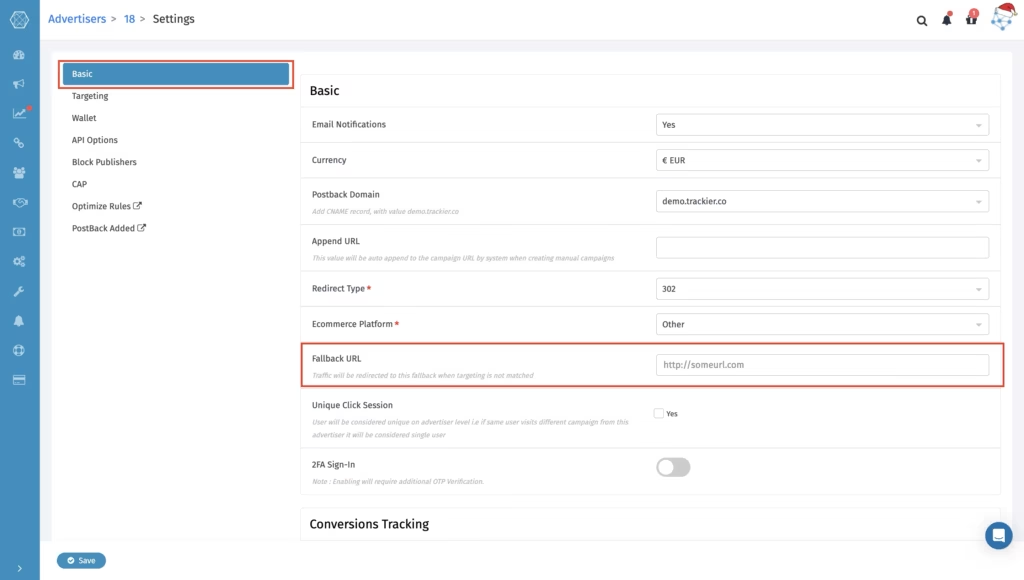
For a broader fallback rule that applies across all campaigns under a specific advertiser, go to the advertiser’s settings and navigate to Basic. There you will find the option to add a fallback URL.
This URL activates when advertiser-level targeting or restrictions fail, regardless of which campaign the traffic came from.
Setting Up the Global Fallback
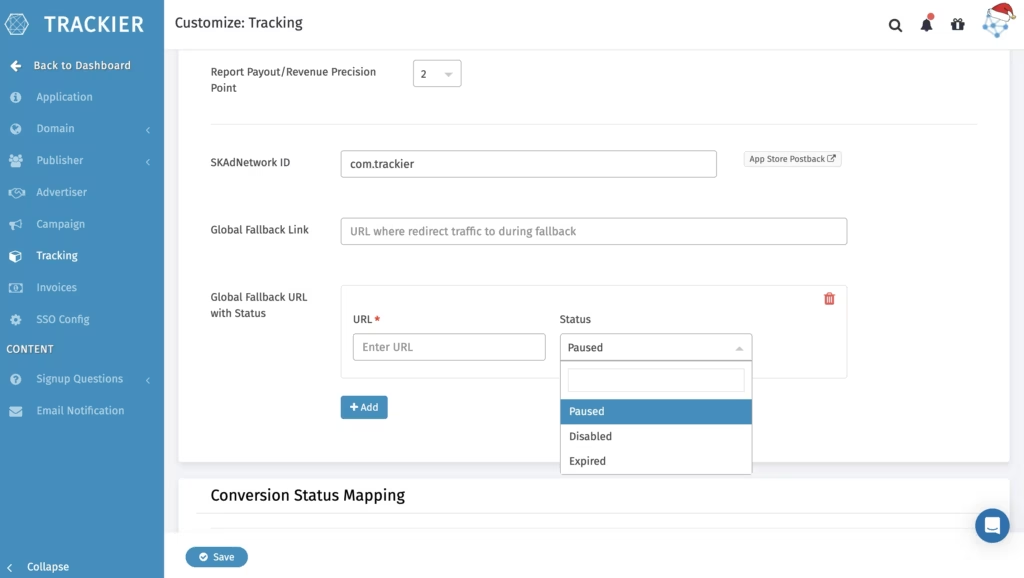
For a platform-wide safety net, go to Customise and navigate to Tracking. Here you can add a global fallback URL that applies whenever no campaign-level or advertiser-level fallback is configured.
Trackier also gives you the option to define different fallback URLs based on specific campaign statuses, which adds an extra layer of control for platforms managing a large number of active offers.
Configuring Fallback Alongside CAP
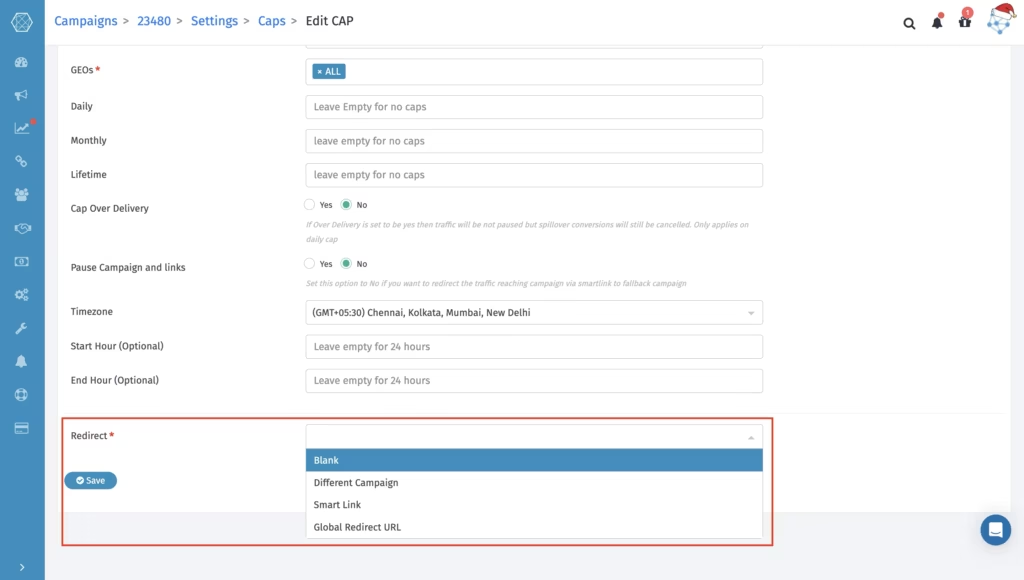
CAP and fallback are closely connected. When you set a CAP on a campaign, you can define exactly where traffic should go once that CAP is hit.
Inside the campaign’s CAP settings, you can choose from four destinations:
- Blank: Traffic redirects to a blank page showing a TARGETING_FAILED message.
- Different Campaign: Traffic redirects to another campaign you select.
- Global Redirect URL: Traffic redirects to the global fallback URL you have defined under Customise.
- Smart Link: Traffic redirects to a smart link, which automatically routes visitors to the most relevant available offer across multiple campaigns.
Understanding the Fallback Chain Limit
One important rule in Trackier’s fallback system is that chaining is not supported. Fallback can only happen once in a sequence.
If Campaign X redirects to Campaign Y, and Campaign Y later reaches its own CAP or fails targeting, the traffic will not continue to Campaign Z even if Campaign Z is set as Campaign Y’s fallback.
This is by design, and it keeps traffic routing predictable. If you need more complex multi-step routing, Trackier’s Smart Link feature is built for that use case.
Smart Links can hold multiple campaigns and automatically send traffic to the most relevant offer, which effectively gives you fallback depth without the complexity of manually chained campaigns.
Checking Fallback Performance in Reports
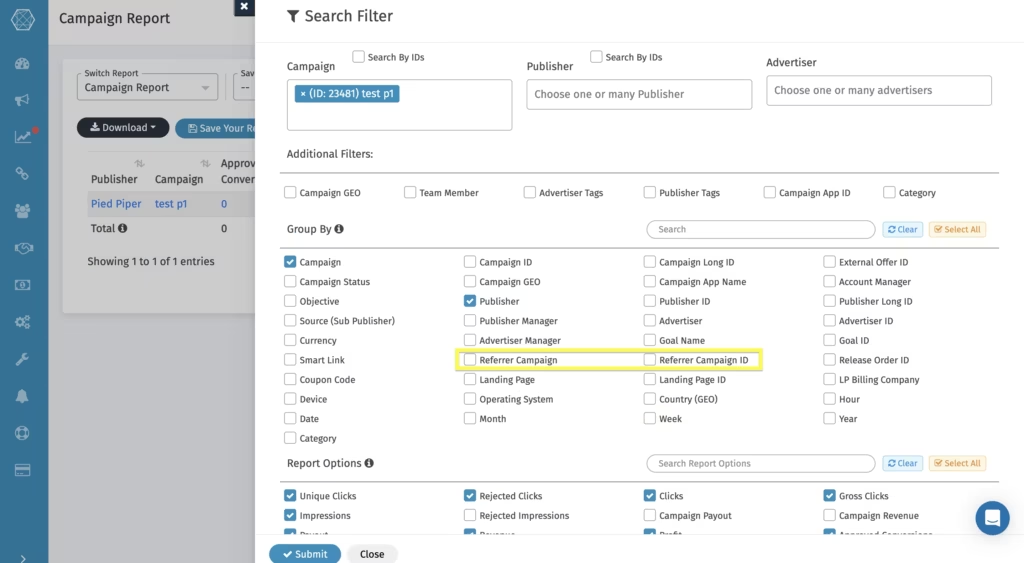
Once your fallback setup is live, you can monitor how it is performing directly in Trackier’s reporting. In the conversion or campaign report, use the Group By option and select Referrer Campaign.
This shows you which campaigns sent fallback traffic to the campaign you are viewing, giving you full visibility into overflow patterns and conversion activity that originated elsewhere.
Testing Before Going Live
Before pushing traffic through a campaign with fallback settings configured, run through a quick verification checklist. Test your campaign targeting rules to confirm which conditions trigger a redirect.
If possible, manually trigger the CAP to verify that traffic redirects to the correct destination. Confirm that postbacks and conversions are being tracked correctly on the fallback destination.
And check your reports to make sure referrer campaign data is appearing as expected. Catching issues at this stage prevents traffic leakage and keeps your reporting clean from the first click.
Turning Wasted Traffic Into a Recoverable Opportunity
Fallback traffic setup is one of those configurations that sits quietly in the background but makes a meaningful difference in how efficiently your platform operates.
Campaigns will always hit their CAPs. Targeting will always filter out some traffic. What separates a well-run network from one that constantly loses traffic is having a clear plan for every visitor that cannot be served by their original destination.
Trackier gives you that plan across three levels, with enough flexibility to handle everything from a simple redirect to a fully tracked spillover flow.
Setting it up correctly before a campaign goes live is one of the most straightforward ways to protect both your traffic and your publisher relationships.
FAQs
What is fallback traffic in Trackier, and when does it get triggered?
Fallback traffic refers to visits that cannot be served by the original campaign they landed on. In Trackier, it gets triggered in two scenarios: when incoming traffic fails to meet the campaign’s targeting or restriction criteria or when the campaign has reached its conversion CAP and is no longer accepting new traffic.
In what priority order does Trackier handle fallback traffic?
Trackier processes fallback traffic across three levels in a fixed priority order. Campaign-level fallback is checked first. If none is configured, it moves to the advertiser-level fallback. If neither exists, the global fallback URL acts as the final safety net.
Can fallback traffic be tracked and reported separately in Trackier?
Yes. To track fallback traffic conversions accurately, the recommended approach is to create an internal publisher, generate a tracking link for them, and use that as the fallback URL. You can then use the Group By > Referrer Campaign option in your conversion or campaign reports to monitor where fallback traffic originated.
What happens to fallback traffic conversions after a campaign’s CAP is reached?
This is controlled by the Allow Spillover Conversions setting at the campaign level. You can choose to always approve spillover conversions, approve them only when the campaign is paused due to CAP, or cancel them entirely. Additionally, the Cancel Fallback Traffic Conversions toggle lets you mark fallback conversions as cancelled so they remain invisible on publisher dashboards.
