A user clicks your Google Ad, lands on your website instantly, completes a purchase a few days later, but the conversion never gets attributed back to Google Ads. The campaign generated the sale, but the click identifier was lost somewhere along the journey, and Google Ads Parallel Tracking is usually the reason why.
Google Ads Parallel Tracking changes how clicks are processed, and traditional redirect-based tracking is no longer enough. Trackier’s Google Ads Parallel Tracking & GCLID Capture ensures every valid Google Ads click is captured, stored, and attributed correctly without slowing down your landing pages. This guide explains how Parallel Tracking works, how GCLID capture functions in Trackier, how to configure it, and why it improves conversion accuracy.
What Is Google Ads Parallel Tracking?
Parallel Tracking is Google’s click measurement method that sends users directly to the landing page while tracking requests happen in the background. Instead of waiting for multiple redirect chains to complete, visitors reach your website immediately, improving page speed and user experience.
Trackier is fully compatible with Parallel Tracking and captures the Google Click Identifier required for accurate Google Ads attribution.
What Is GCLID?
GCLID is a unique parameter automatically added to Google Ads clicks when auto-tagging is enabled.
Every click receives its own unique GCLID, allowing Google Ads and Trackier to connect a conversion back to the exact ad click that generated it. Without GCLID capture, conversions may not be attributed correctly, especially when users return later to complete their purchase.
Why Use Parallel Tracking & GCLID Capture?
- Capture every eligible Google Ads click accurately
- Support Google’s mandatory Parallel Tracking workflow
- Improve landing page speed by removing redirect delays
- Preserve attribution across delayed conversions
- Store GCLIDs securely for future conversion events
- Send accurate conversion signals back to Google Ads
- Improve campaign optimisation with reliable attribution
How Parallel Tracking Works
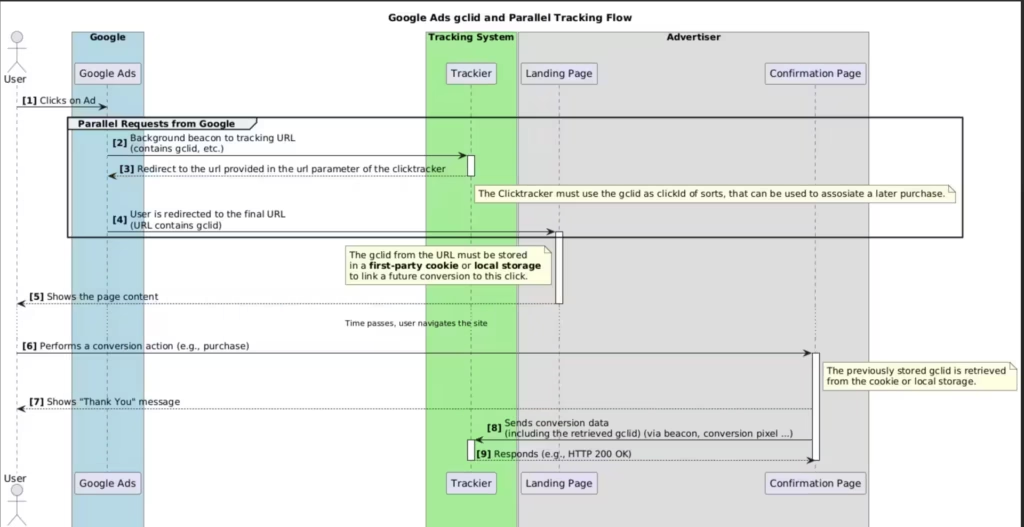
When someone clicks your Google Ad, multiple actions happen simultaneously:
- The visitor clicks the Google Ad.
- Google redirects the visitor directly to the landing page.
- Background tracking requests execute simultaneously.
- The landing page loads with the GCLID parameter.
- Trackier captures the GCLID during the first visit.
- The GCLID is securely stored in first-party browser storage.
- The user later completes a purchase or conversion.
- Trackier retrieves the stored GCLID.
- The conversion is attributed back to the original Google Ads click.
How to Enable Google Ads Parallel Tracking?
To configure Parallel Tracking inside Trackier:
Go to your Google Ads campaign integration settings and enable Google Ads Parallel Tracking & GCLID Capture. Once enabled, Trackier automatically handles GCLID collection, storage, and retrieval throughout the customer journey.
Before enabling the feature, make sure Google Ads auto-tagging is enabled so every ad click contains a valid GCLID.
What Trackier Automatically Does
Once the feature is enabled, Trackier handles the complete attribution workflow automatically.
Capture GCLID
Trackier detects the GCLID on the user’s first landing page visit.
Store the Click ID
The captured GCLID is saved in first-party cookies or local browser storage for future use.
Retrieve During Conversion
When the visitor converts, Trackier retrieves the stored GCLID automatically.
Attribute the Conversion
Trackier sends the conversion with the correct click identifier, allowing Google Ads attribution to remain accurate even when the click and conversion happen at different times.
Why First-Party Storage Matters
Users rarely convert immediately after clicking an ad.
They may:
- Return several hours later
- Purchase days later
- Visit multiple pages before converting
- Leave and come back before completing checkout
Because Trackier stores the GCLID locally after the first visit, attribution remains available throughout the customer journey instead of being lost after the initial page load.
Benefits of GCLID Capture
Accurate Attribution
Conversions are linked back to the original Google Ads click instead of being reported as unattributed traffic.
Better Campaign Optimisation
Google Ads receives cleaner conversion data, improving bidding and optimisation.
Faster Landing Pages
Visitors reach your website immediately while tracking happens in the background.
Higher Data Reliability
Even when redirect chains exist, Trackier preserves attribution using stored GCLIDs.
Best Practices
For the most accurate attribution:
- Enable Google Ads auto-tagging.
- Keep Parallel Tracking enabled.
- Allow the GCLID parameter to reach the landing page.
- Avoid removing URL parameters during redirects.
- Preserve first-party cookies throughout the customer journey.
- Verify that conversion pages fire correctly after purchase.
How to Verify Your Setup
After enabling Parallel Tracking:
- Click a Google Ad.
- Confirm the landing page URL contains a gclid parameter.
- Complete a test conversion.
- Verify that the conversion appears correctly inside Trackier.
- Confirm attribution is passed back to Google Ads where applicable.
Common Attribution Issues
If conversions are not attributed correctly, check the following:
- Google Ads auto-tagging is disabled.
- The GCLID parameter is removed during redirects.
- Landing pages strip URL parameters.
- Browser storage is cleared before conversion.
- Conversion events are not configured correctly.
Most attribution issues occur because the GCLID is lost before the conversion takes place.
Need Help?
If you need assistance configuring Google Ads Parallel Tracking, verifying GCLID capture, or troubleshooting attribution issues, our support team is available through the in-platform chat or at support@trackier.com.
We’ll help ensure every eligible Google Ads click is captured correctly, every conversion is attributed accurately, and your campaign performance reflects the traffic you’ve earned.
FAQs
What is Google Ads Parallel Tracking?
Google Ads Parallel Tracking sends visitors straight to your landing page while click tracking runs in the background. This means faster page loads and no redirect delays, while Google and Trackier still capture the data needed for accurate attribution.
Does Trackier support Google Ads Parallel Tracking?
Yes. Trackier is fully compatible with Google Ads Parallel Tracking and automatically captures, stores, and retrieves the GCLID for every eligible click, so conversions stay attributed even when they happen days after the initial visit.
How do I enable Google Ads Parallel Tracking in Trackier?
Head to your Google Ads campaign integration settings and turn on Google Ads Parallel Tracking & GCLID Capture. Make sure auto-tagging is switched on in Google Ads first, since that’s what generates a valid GCLID on every click.
Why isn’t my conversion getting attributed back to Google Ads?
This usually happens when the GCLID gets dropped before conversion, most often due to disabled auto-tagging, redirects stripping URL parameters, or browser storage getting cleared. Checking these first resolves most attribution gaps.
How long does Trackier store the GCLID for delayed conversions?
Trackier saves the GCLID in first-party browser storage right after the first visit, so it stays available whether the customer converts in minutes or comes back days later to complete a purchase.
