A user clicks your tracking link, and for a full second, nothing happens. That click becomes redirect traffic, bounced from a tracking domain to a redirect server before it finally lands on the brand’s actual page.
On a fast connection, that hop is invisible. On a shaky mobile network, it is often exactly where the user gives up.
Redirect chains do more than add load time. They put an unfamiliar domain between the click and the brand, which slows conversions on trust-sensitive offers and makes tracking URLs harder to audit.
Much like server-to-server integration keeps click and conversion data moving without depending on the user’s browser, direct link setup in Trackier is built to remove that middle step entirely.
This guide walks through what direct link does, when it applies, and how to complete direct link setup correctly inside your panel.
What Is Direct Link Setup?
Direct link setup enables a feature that sends users from their click straight to the brand’s landing page, without routing them through Trackier’s tracking domain as a visible hop.
Once enabled on a campaign, the tracking link you generate carries the same domain as the destination URL, so what a user sees in their browser bar is the brand’s own web address, not a third-party redirect domain.
This matters most when trust and speed decide whether a click turns into a conversion. Fewer hops mean a faster page load. A familiar domain means a user is more likely to complete the action they started.
What Is It Used For?
Once a direct link is enabled on a campaign inside Trackier, it handles the following:
- Removes the visible redirect step between the click and the landing page, cutting the number of hops from two or more down to one.
- Matches the tracking URL’s domain to the brand’s own domain, which builds confidence with users who are wary of unfamiliar redirect links.
- Reduces load time on the click-through, which supports conversion rate directly on time-sensitive offers.
- Simplifies the tracking URL itself, making it easier for advertisers and affiliates to read, audit, and troubleshoot without unpacking a redirect chain.
Use case: A publisher promoting a fashion brand can send users on a direct link straight to that brand’s product page.
Because the address bar shows the brand’s own domain instead of a redirect URL, users feel they are on familiar ground before they have even seen the product, and that shows up as stronger trust and higher conversion.
What You Would Require Before Starting the Direct Link Setup?
Before beginning direct link Setup on a campaign, keep the following in mind:
- The campaign URL needs to be one the brand shared with you directly, not a URL passed on by a third-party affiliate network sitting on top of the brand’s page.
- Direct link works with pixel-based campaigns only, not postback-based ones, so confirm the campaign’s conversion tracking method before configuring it.
- If the offer is running on Shopify, the direct-link code needs to be added inside the Shopify platform itself, in addition to enabling the toggle in Trackier.
Action 1: Enable Direct Link in Campaign Settings
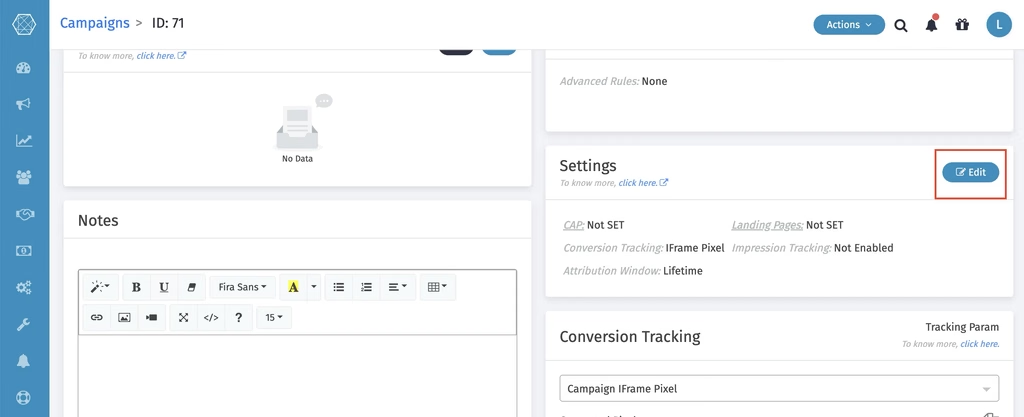
Open the relevant campaign inside your Trackier panel and click Edit. Scroll down through the campaign settings until you reach the “Enable Direct Links” option, and click the toggle to turn it on.
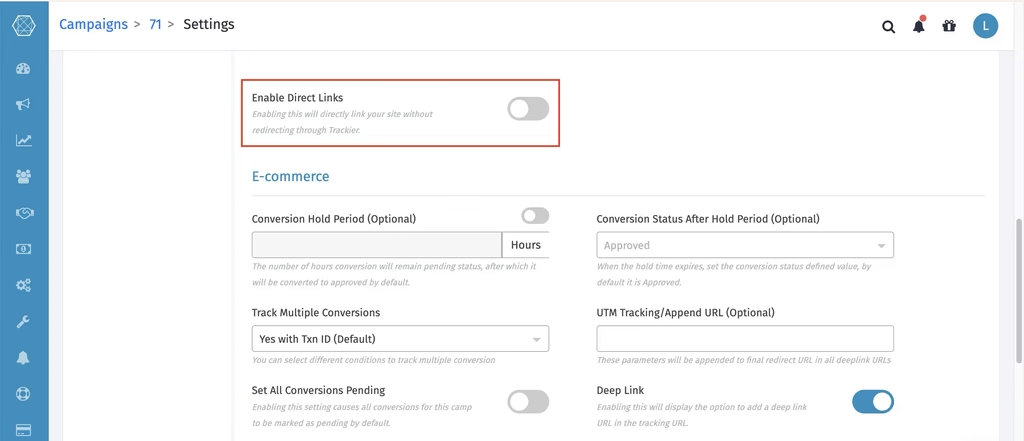
Once the toggle is active and your changes are saved, return to the campaign and generate the tracking link as you normally would.
Action 2: Generate and Compare the Tracking Link
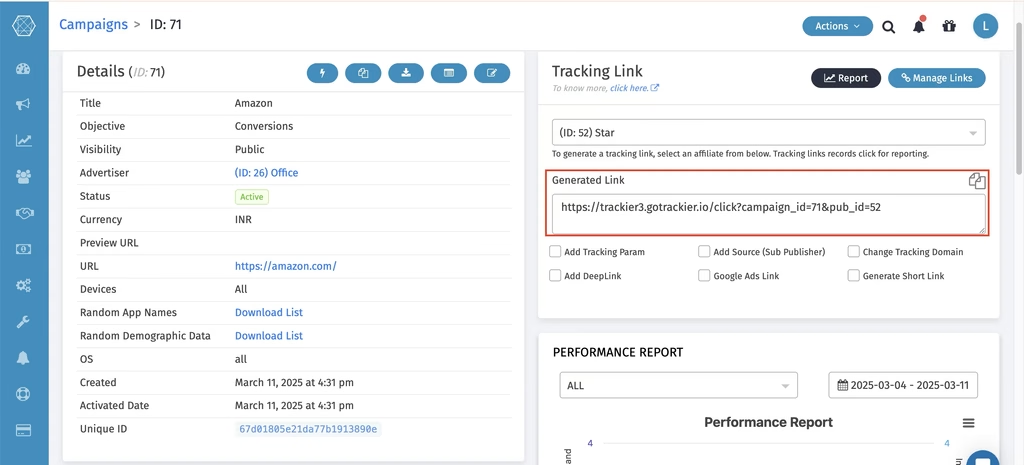
When you generate the tracking link after enabling direct link, the domain in the link matches the campaign’s destination URL rather than displaying Trackier’s own tracking domain.
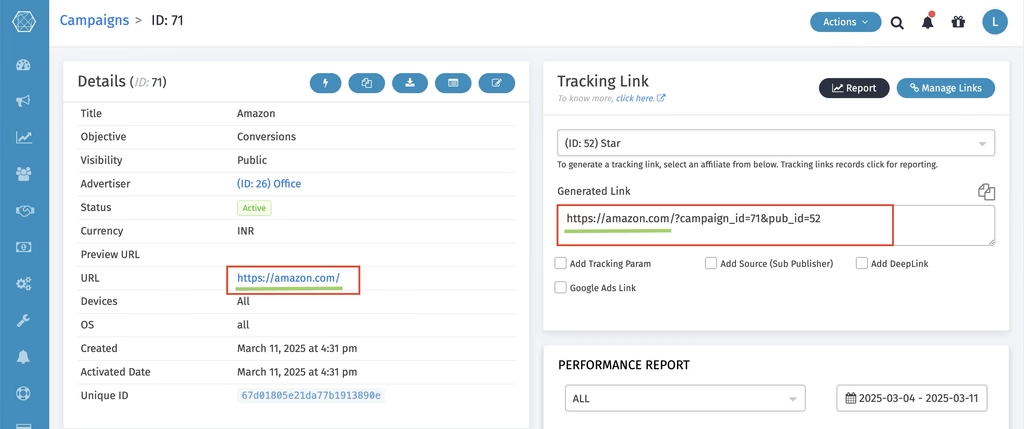
With direct link enabled, the click resolves in a single hop, straight to the destination.
Without it, the click passes through Trackier’s own redirect domain first, adding at least one additional hop.
Conditions for Using the Direct Link Setup
Direct link only functions when the campaign URL comes directly from the brand.
If the brand instead hands that URL to a third-party affiliate network, and that network passes it on to you wrapped in its own redirect, direct link will not resolve correctly on your end, unless the third-party network has also enabled direct linking on its own panel.
Direct Link on Shopify
If your campaign is running on Shopify, enabling the toggle inside Trackier is not enough on its own.
You also need to add the direct-link code within the Shopify platform.
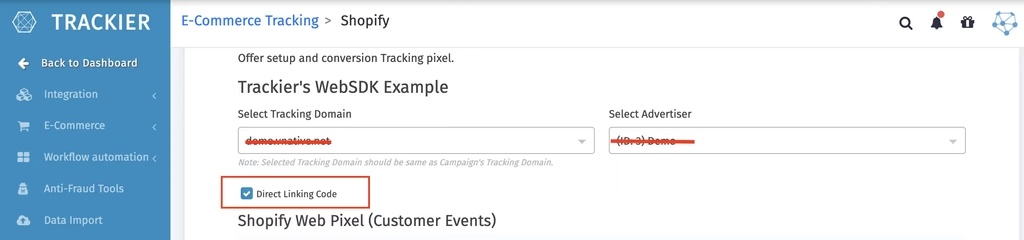
To do this, go to your Trackier panel, click “Automation”, then select “Integrations” under the Ecommerce section.
From there, click “Shopify Setup”, check the box for “Direct Linking Code”, copy the code provided, and paste it into your Shopify panel.
If Shopify is not yet integrated with Trackier, that setup needs to happen first. You can find the full walkthrough in the Shopify integration guide.
Tips & Best Practices
- Reserve direct link for your highest-traffic campaigns, where cutting a redirect hop has the most measurable impact on conversion.
- Always prefer a URL shared directly by the brand over one redirected through a third party, since only the former guarantees the direct link resolves cleanly.
- Test the generated tracking link across both desktop and mobile before pushing it live, since redirect behaviour can vary slightly by device and network.
- Coordinate with your advertiser ahead of time to confirm the destination URL and campaign structure are compatible with a direct link.
Note: Direct link works only for pixel-based campaigns, not postback-based ones. It also depends on the URL being provided directly by the brand rather than a third party.
If a third-party URL is all you have, ask your advertiser to enable direct link in their own panel so it carries through correctly.
Need Help?
If you run into any issues while completing direct link setup or generating tracking links for a direct link campaign, our support team is available via the in-platform chat or at support@trackier.com.
We will make sure your links are resolving in a single hop and that your tracking data stays accurate throughout.
FAQs
What is Direct Link Setup in Trackier, and how does it change the tracking URL?
Direct Link Setup sends users from their click straight to the brand’s landing page, without a visible redirect through Trackier’s own tracking domain.
Once enabled, the generated tracking URL carries the same domain as the campaign’s destination page, cutting the click down to a single hop instead of two or more.
Does Direct Link Setup work with any campaign URL I am given?
No. Direct Link Setup only works reliably when the campaign URL comes directly from the brand.
If the URL has been passed to you through a third-party affiliate network with its own redirect layered on top, Direct Link will not resolve correctly unless that network has also enabled the feature on its own panel.
What happens if I run a Direct Link campaign on Shopify?
Completing Direct Link Setup in your Trackier campaign settings is not enough for Shopify offers.
You also need to add the direct-link code inside the Shopify platform itself, which you can generate from Automation, then Integrations, then Shopify Setup in your Trackier panel.
Does Direct Link Setup work for postback-based campaigns?
No. Direct Link Setup is built for pixel-based campaigns only.
If your campaign is tracked through postbacks, it will not apply, regardless of whether the URL was shared directly by the brand.
