You run a campaign through AppsFlyer. Your publisher fires clicks, conversions come in, and on the surface, everything looks fine. Then you check AppsFlyer’s click report and compare it with what Trackier recorded. The numbers don’t match. AppsFlyer shows significantly more clicks than Trackier.
That gap isn’t a reporting glitch. It’s often a sign of click injection, where fraudulent clicks are being inserted into your attribution window without ever going through your tracking platform. And the reason it’s possible at all? Your AppsFlyer link is fully exposed to the publisher. Server-to-server (S2S) click tracking is how you close that gap.
What S2S Click Tracking Actually Does
In a standard setup, a publisher clicks a Trackier link, which then redirects to your AppsFlyer tracking URL, which finally lands the user at the Play Store or App Store. Every hop in that chain is visible. Your MMP link gets exposed at one of those redirects, and any bad actor in the chain can see and abuse it.
S2S click tracking changes this flow. When a publisher clicks, Trackier records it at the server level and redirects the user straight to the app store, no MMP link in the chain. AppsFlyer still gets the click on their end via a server-to-server call, but your tracking URL never touches the publisher’s device. The result: the attribution still works, but the link is hidden.
Why This Matters Beyond Just Hiding Links
Link masking is only part of the benefit. Here’s what S2S click tracking actually solves:
Click discrepancies – When AppsFlyer shows more clicks than Trackier, it usually means clicks are being registered at the MMP level without going through your platform. With S2S enabled, every click Trackier processes is the one that reaches AppsFlyer, the two numbers should align.
Faster redirects – Removing an unnecessary redirect hop means the user gets to the app store faster. Fewer hops, less latency, better user experience.
Publisher-level control – You can restrict S2S click tracking to specific publishers. If you trust some partners fully, leave them on the standard flow. For others, flip on S2S and tighten the chain.
How to Enable It
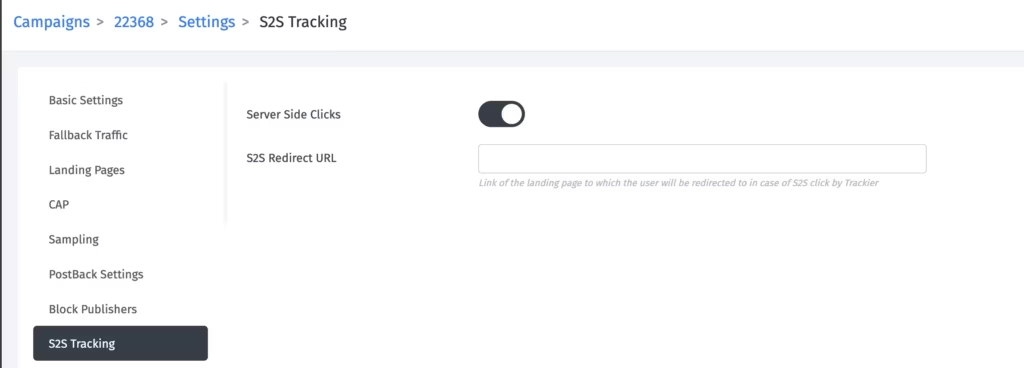
The setting lives on your campaign settings page inside Trackier. Once you switch on server-side clicks, two additional options appear:
The first lets you whitelist specific publishers. If no publisher is selected, S2S applies to everyone on the campaign.
The second asks for the S2S redirect URL, the final destination where your publisher lands after clicking. This is the Play Store or App Store page for your app, and the URL format changes based on which method you use. More on that below.
To enable S2S tracking on your account, reach out to your Trackier account manager first, this feature needs to be activated.
The Three Methods
There isn’t one single way to configure S2S with AppsFlyer. Which method you use depends on what data your publishers can pass and how your advertiser wants to receive clicks.
Method 1: Referrer Parameters
This is the most common approach. Your advertiser’s AppsFlyer URL carries a {click_id} inside the af_ref parameter, and the same click ID gets passed in the Play Store URL as a referrer.
Your AppsFlyer campaign URL needs to include &redirect=false, which prevents AppsFlyer from doing its own redirect and hands control back to Trackier for the routing. The Play Store URL in your S2S setup then carries referrer=AccountName_{click_id}, where the account name comes from your AppsFlyer account.
When a click fires, Trackier records it, sends the click to the AppsFlyer server-side, and routes the user to the Play Store, with the referrer parameter intact for attribution.
Method 2: Device IDs (GAID or IDFA)
If your publishers are passing device identifiers, Google Advertising ID for Android, IDFA for iOS, you can use those to stitch attribution together instead of referrer parameters.
The AppsFlyer URL here includes {gaid} and {idfa} macros along with &redirect=false. The S2S URL in Trackier is just the plain Play Store link, no modifications needed. Attribution is matched at the device ID level, so as long as those values are being passed through, clicks connect correctly on both sides.
This method is useful when you’re working with traffic sources that natively pass device identifiers but don’t support referrer-based attribution.
Method 3: Probabilistic Matching
When you have neither a clean click ID nor device identifiers, probabilistic matching is the fallback. It works by combining signals, the user’s IP address, user-agent string, and device language, to estimate a match between the click and the install.
Your AppsFlyer campaign URL needs three additional parameters: af_ua for the user agent, af_ip for the device IP, and af_lang for the language. Like the other methods, &redirect=false is required.
The S2S URL is again just the plain Play Store link. AppsFlyer handles the probabilistic matching on its end using the signals passed in the campaign URL.
This method is less precise than the first two, but it covers scenarios where device IDs and click IDs simply aren’t available.
Choosing the Right Method
| Method 1 | Method 2 | Method 3 | |
| What you need | Click ID passthrough | GAID / IDFA | IP, user agent, language |
| Play Store URL changes? | Yes, add referrer | No | No |
| Precision | High | High | Moderate |
| Best for | Most standard campaigns | Device ID-heavy traffic | Broad traffic without IDs |
A Note on Fraud Reduction
All three methods share one common outcome: the advertiser’s AppsFlyer URL is never exposed in the redirect chain. This removes the surface area that click injection exploits.
Click injection works by listening for app installs on a device and firing fake clicks just before the install completes, claiming attribution. For this to work, the attacker needs to know your AppsFlyer tracking URL. S2S tracking means they never see it.
This is why Trackier recommends S2S, particularly when you’re seeing a persistent gap between AppsFlyer and Trackier click counts, it’s often the cleaner fix compared to chasing individual publishers.
Need Help?
If you run into any issues while setting up S2S click tracking or configuring your AppsFlyer integration, Trackier’s support team is available via the in-platform chat or at support@trackier.com. We will make sure your clicks are tracked accurately and your attribution is never left unresolved.
FAQs
Does S2S tracking affect attribution accuracy?
No. Attribution still works the same way, the click gets registered at AppsFlyer via a server-side call. The only thing that changes is whether the publisher’s browser ever sees the AppsFlyer URL.
What happens if I don’t whitelist any publishers for S2S Click Tracking?
All publishers on the campaign will be routed through the S2S flow by default. If you want only a subset of publishers on S2S Click Tracking, use the whitelist.
Is &redirect=false mandatory for S2S Click Tracking?
Yes, for all three methods. Without it, AppsFlyer will attempt its own redirect, which breaks the S2S flow and defeats the purpose of masking the link.
Which method should I start with for S2S Click Tracking?
Method 1 with referrer parameters is the most widely used and compatible with the broadest range of advertiser setups. Start there unless your publisher traffic specifically supports device ID passthrough.
Can I enable S2S Click Tracking on an active campaign?
Yes, but confirm the setup with your advertiser first, changes to the campaign URL parameters and redirect behavior need to be aligned before going live.
